Support
AuroraLink CarPlay AI Box Mini Operating Guide
A. Instructions for the first connection Instructions for the first connection:
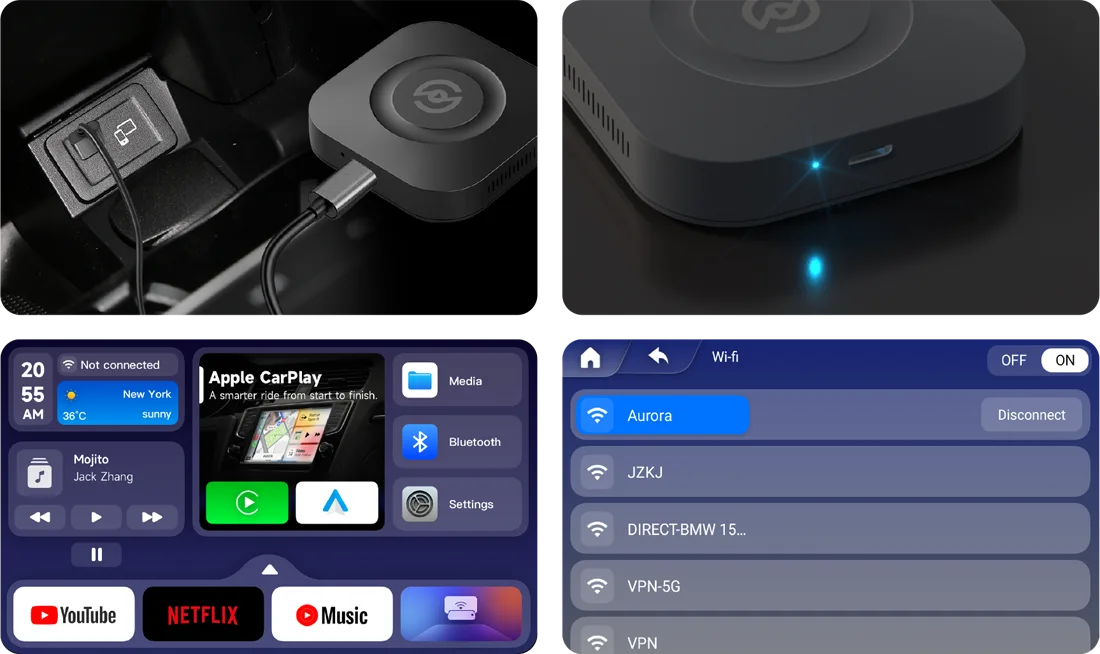
- Plug and play, use Type-c cable to connect CarPlay AI Box.
- Observe the indicator light, if the red light turns blue and flashes, it is a normal connection.
- Wait for the boot animation to finish playing and enter the carplay ai box system.
- Enter settings, select “WIFI”, then connect to WiFi.
B. Cast — Mirror Function
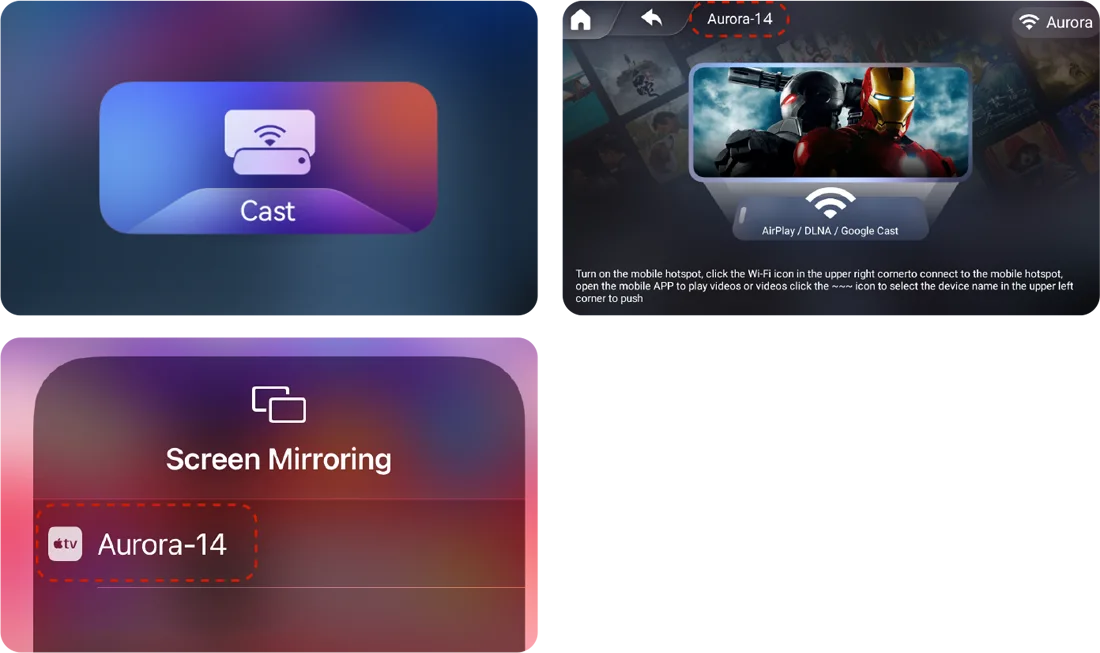
Enter the “CAST” application, turn on the screen mirroring function on the mobile phone, select the device name, and complete the mirroring.
C. Cast — Screencasting
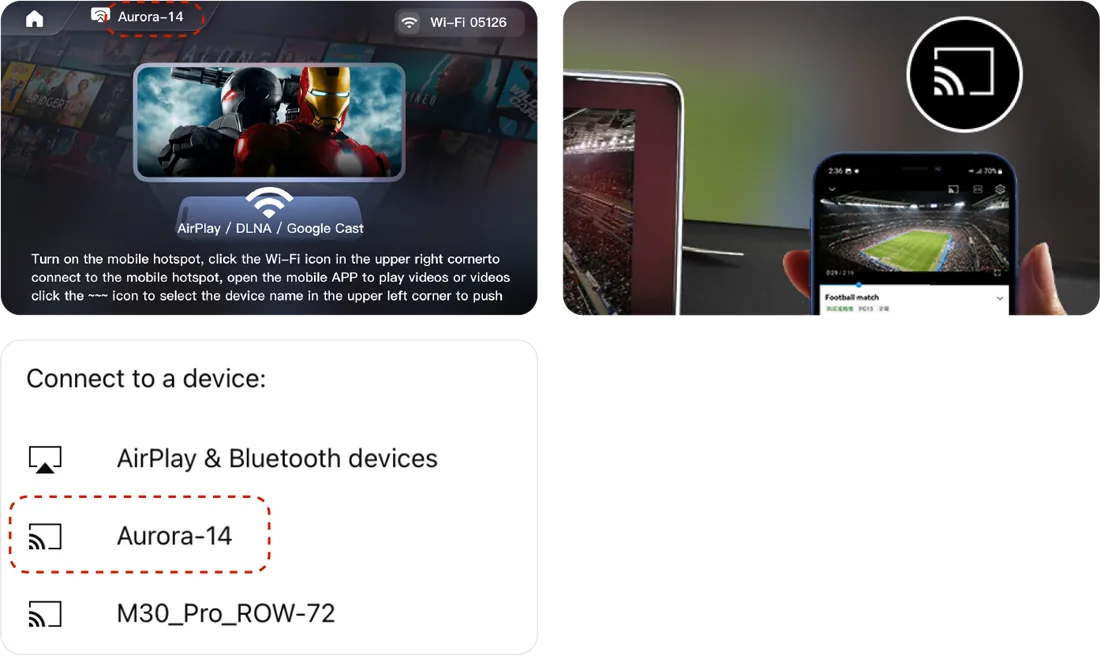
Enter the ”CAST” application, open the APP on the mobile phone to play the video, select the screencasting icon, select the device name, and complete the screencasting.
D. DIY Animation
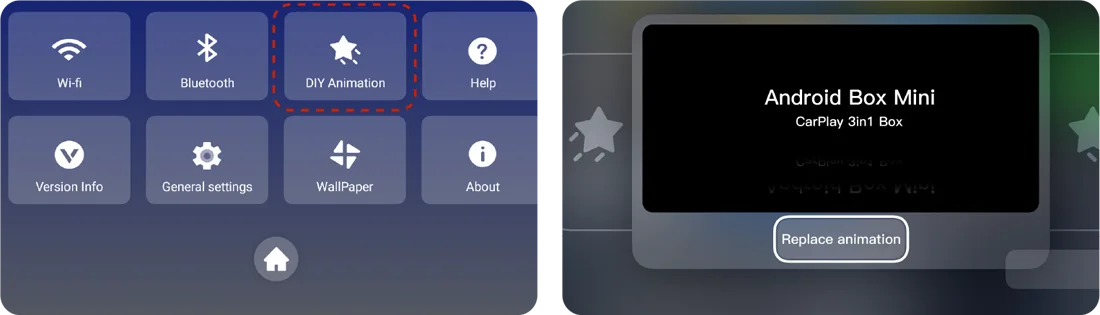
- Enter the settings, select “DIY Animation”, select “Replace Animation”.
- Select the video to be replaced, select the confirmation button.
- And wait for the replacement of the boot animation to complete.
E. Support HDMI Function
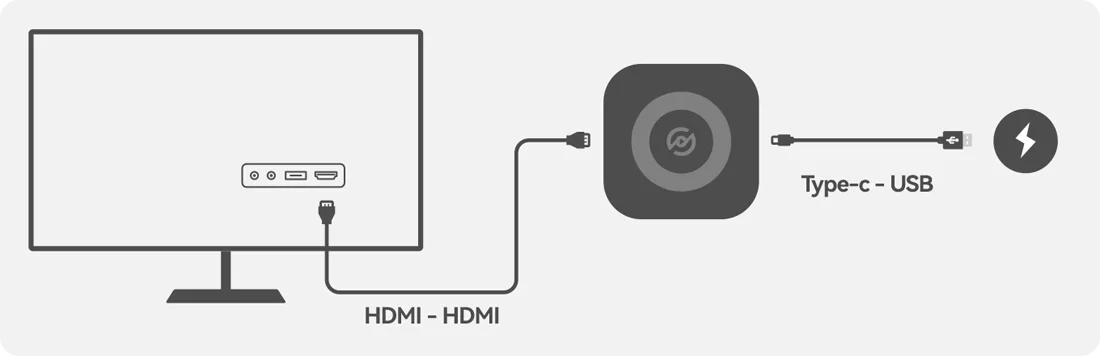
First, use the Type-C cable to provide power to the box, and then use the HDMI cable to connect the box and the monitor. After entering the interface, use the wireless Bluetooth remote control to connect to WIFI to play audio and video.
F. U Disk Media
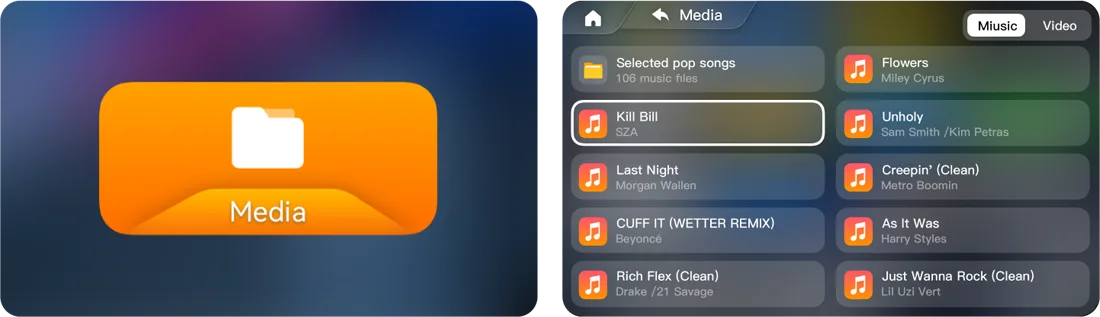
Insert the U disk into the interface, enter the “MEDIA” application, select “UDISK”, and choose to play music or video
G. Wireless carPlay connection
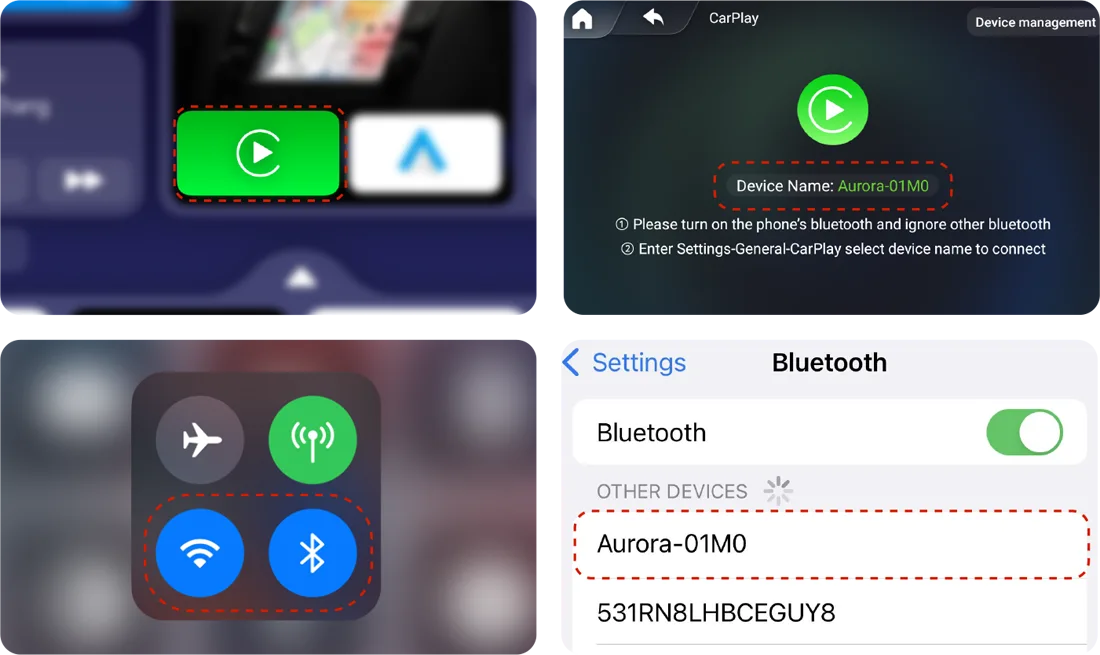
Enter the “CarPlay” application, turn on WIFI on the Iphone, turn on Bluetooth, pair the device, and then enter the wireless CarPlay interface.
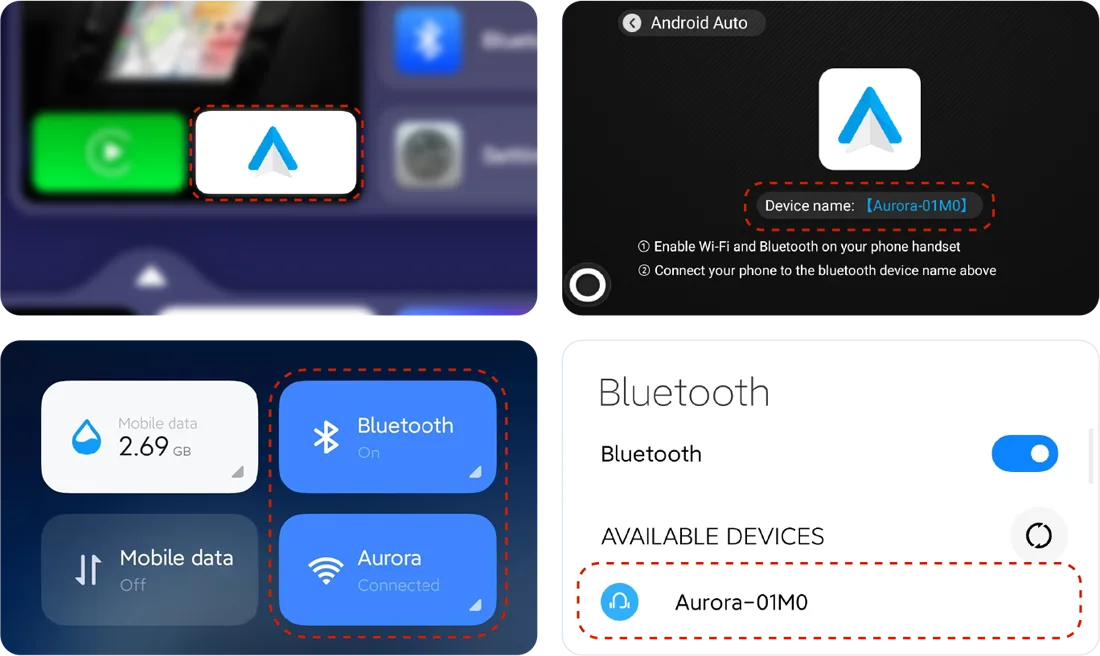
Wireless Android Auto Connection
Enter the “Android Auto” application, turn on WIFI on the mobile phone, turn on Bluetooth, pair the device, and then enter the wireless Android Auto interface.
H. Third -party application description
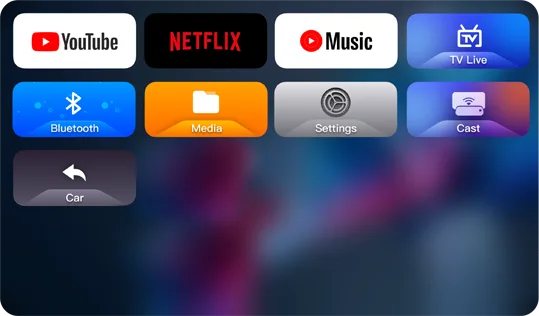
AuroraLink CarPlay AI Box Mini supports YouTube, NETFLIX, Google Music, TV Live.
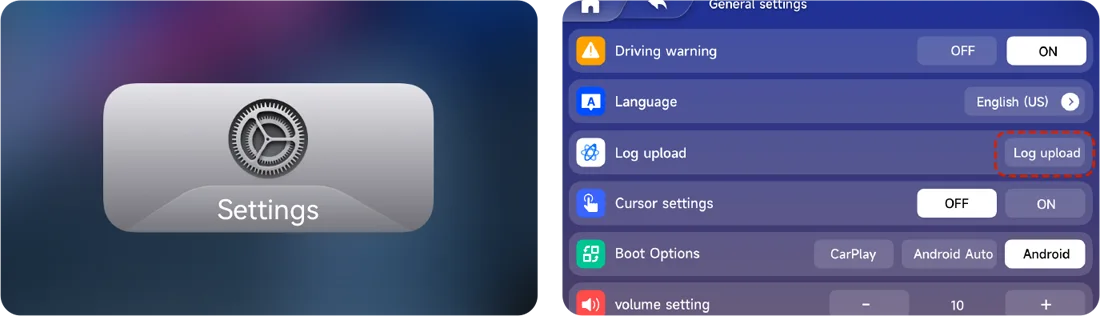
I. Log Upload
Enter the settings, select “General Settings”, select “Log upload”, and wait for the successful upload.
J. FOTA
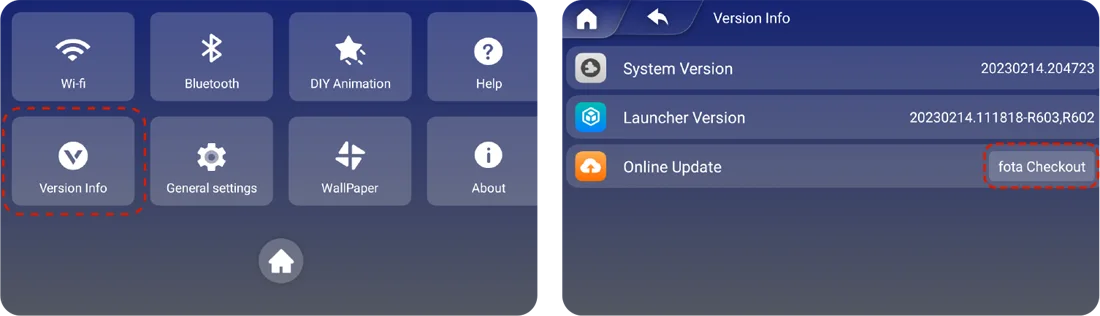
Enter settings, select “Version Info”, select “fota Checkout”, “Select CHECK FOR UPDATES”